Getting Started with n8n: Complete Self-Hosting Guide

n8n is one of the most powerful open-source workflow automation tools available today. Unlike cloud-only solutions like Zapier, n8n gives you complete control over your automation infrastructure through self-hosting.
In this comprehensive guide, we'll walk you through everything you need to know to get n8n up and running on your own server.
Why Self-Host n8n?
Before we dive into the technical details, let's understand why self-hosting n8n is worth the effort:
🔒 Data Privacy
Keep sensitive data on your infrastructure. No third-party access to your workflows or credentials.
💰 Cost Effective
No per-workflow pricing. Run unlimited workflows for the cost of your server.
🎨 Full Customization
Modify source code, create custom nodes, integrate with internal systems.
🚀 Better Performance
No external API rate limits. Faster execution for data-intensive workflows.
🔧 Advanced Features
Access to all enterprise features without subscription costs.
Prerequisites
Before you begin, make sure you have:
- A server or VPS with at least:
- 2 GB RAM
- 20 GB storage
- Ubuntu 20.04+ or similar Linux distribution
- Docker and Docker Compose installed
- Basic command line knowledge
- A domain name (optional, but recommended)
Step 1: Install Docker
If you don't have Docker installed, here's how to set it up on Ubuntu:
# Update package index
sudo apt update

# Install required packages
sudo apt install apt-transport-https ca-certificates curl software-properties-common

# Add Docker's GPG key
curl -fsSL https://download.docker.com/linux/ubuntu/gpg | sudo gpg --dearmor -o /usr/share/keyrings/docker-archive-keyring.gpg

# Add Docker repository
echo "deb [arch=amd64 signed-by=/usr/share/keyrings/docker-archive-keyring.gpg] https://download.docker.com/linux/ubuntu $(lsb_release -cs) stable" | sudo tee /etc/apt/sources.list.d/docker.list > /dev/null

# Install Docker
sudo apt update
sudo apt install docker-ce docker-ce-cli containerd.io docker-compose-plugin

# Verify installation
docker --version
Step 2: Create n8n Directory Structure
Let's create a dedicated directory for n8n:
mkdir -p ~/n8n
cd ~/n8n
Step 3: Create Docker Compose File
Create a docker-compose.yml file with the following configuration:
version: '3.8'

services:
  n8n:
    image: n8nio/n8n:latest
    container_name: n8n
    restart: unless-stopped
    ports:
      - '5678:5678'
    environment:
      - N8N_BASIC_AUTH_ACTIVE=true
      - N8N_BASIC_AUTH_USER=admin
      - N8N_BASIC_AUTH_PASSWORD=your-secure-password-here
      - N8N_HOST=your-domain.com
      - N8N_PORT=5678
      - N8N_PROTOCOL=https
      - NODE_ENV=production
      - WEBHOOK_URL=https://your-domain.com/
      - GENERIC_TIMEZONE=America/New_York
    volumes:
      - ./n8n_data:/home/node/.n8n
      - ./local_files:/files

volumes:
  n8n_data:
  local_files:
Important: Replace the following values:
your-secure-password-herewith a strong passwordyour-domain.comwith your actual domainAmerica/New_Yorkwith your timezone
Step 4: Start n8n
Launch n8n with Docker Compose:
docker-compose up -d
Verify it's running:
docker-compose ps
You should see the n8n container with status "Up".
Step 5: Access n8n
Open your browser and navigate to:
http://your-server-ip:5678
You'll be prompted for the credentials you set in the docker-compose.yml file.
Step 6: Set Up HTTPS (Recommended)
For production use, you should set up HTTPS. Here's how to do it with Nginx and Let's Encrypt:
Install Nginx
sudo apt install nginx
Install Certbot
sudo apt install certbot python3-certbot-nginx
Configure Nginx
Create a new Nginx configuration file:
sudo nano /etc/nginx/sites-available/n8n
Add the following configuration:
server {
    listen 80;
    server_name your-domain.com;

    location / {
        proxy_pass http://localhost:5678;
        proxy_http_version 1.1;
        proxy_set_header Upgrade $http_upgrade;
        proxy_set_header Connection 'upgrade';
        proxy_set_header Host $host;
        proxy_cache_bypass $http_upgrade;
        proxy_set_header X-Real-IP $remote_addr;
        proxy_set_header X-Forwarded-For $proxy_add_x_forwarded_for;
        proxy_set_header X-Forwarded-Proto $scheme;
    }
}
Enable the configuration:
sudo ln -s /etc/nginx/sites-available/n8n /etc/nginx/sites-enabled/
sudo nginx -t
sudo systemctl reload nginx
Get SSL Certificate
sudo certbot --nginx -d your-domain.com
Follow the prompts to complete the SSL setup.
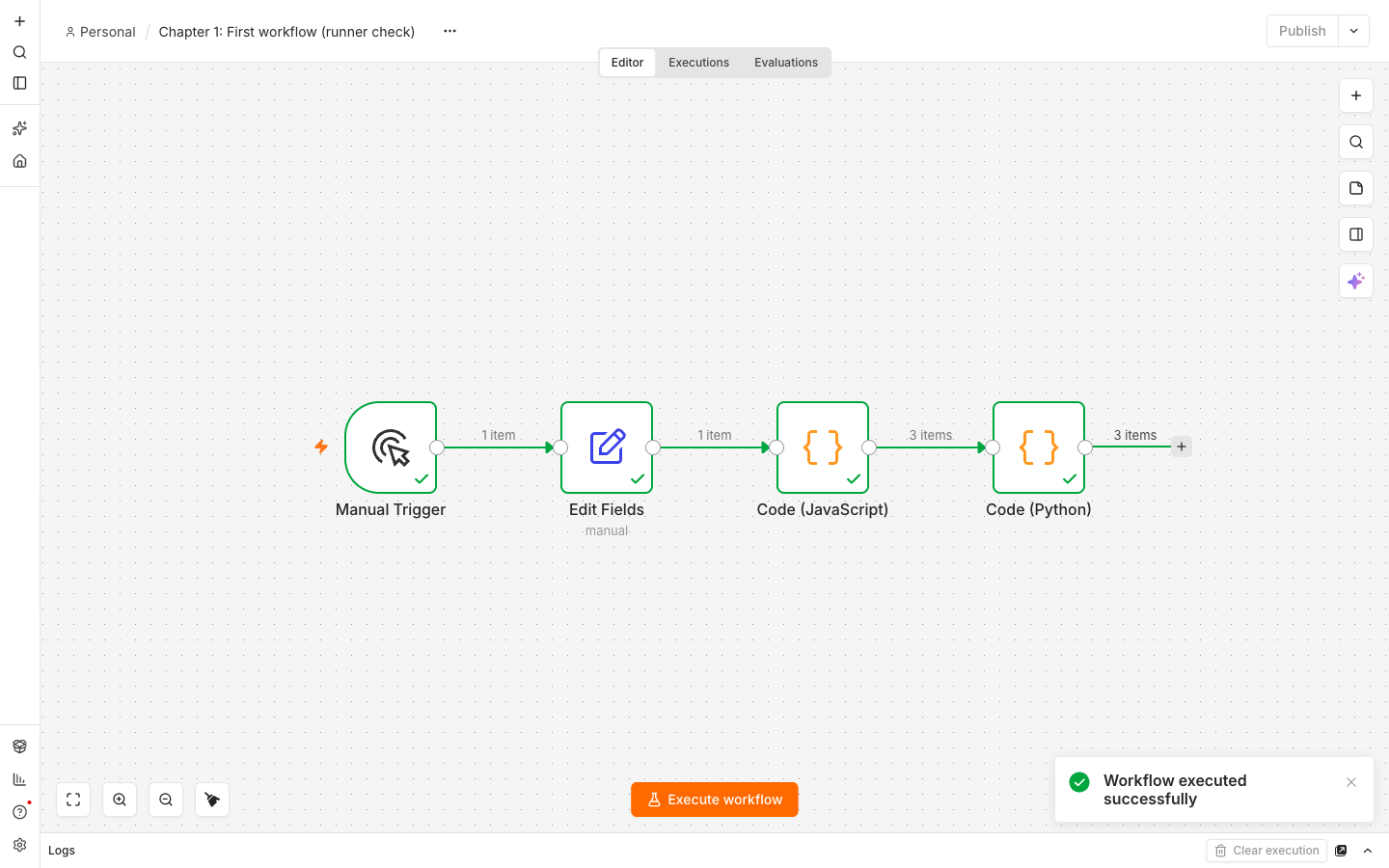
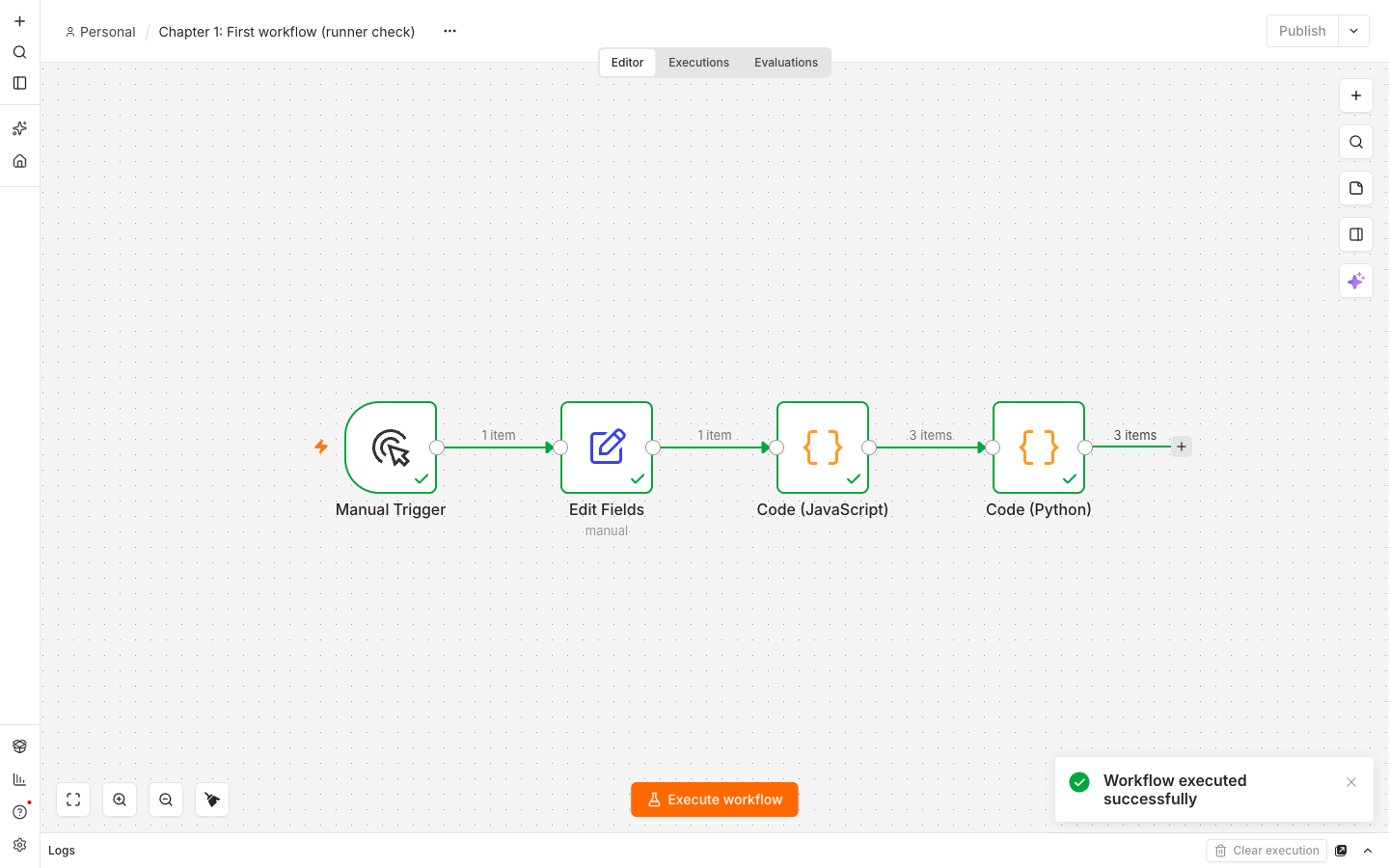
Step 7: Create Your First Workflow
Now that n8n is running, let's create a simple workflow:
- Log in to n8n
- Click "New Workflow" in the top right
- Add a Start node (it's added by default)
- Add a Set node to create some test data:
- Click the + button
- Search for "Set"
- Add fields:
name: "Test",email: "test@example.com"
- Add an HTTP Request node to send data somewhere
- Connect the nodes by dragging between them
- Click "Execute Workflow" to test
Congratulations! You've created your first n8n workflow.
Best Practices for Production
1. Regular Backups
Back up your n8n data directory regularly:
tar -czf n8n-backup-$(date +%Y%m%d).tar.gz ~/n8n/n8n_data
2. Update Regularly
Keep n8n updated to get new features and security patches:
cd ~/n8n
docker-compose pull
docker-compose up -d
3. Use Environment Variables
Store sensitive data in a .env file instead of docker-compose.yml:
# Create .env file
cat > .env << EOL
N8N_BASIC_AUTH_PASSWORD=your-secure-password
N8N_ENCRYPTION_KEY=your-encryption-key
EOL

# Update docker-compose.yml to use env_file
env_file:
  - .env
4. Monitor Resource Usage
Keep an eye on your server resources:
docker stats n8n
5. Set Up Logging
Configure logging for troubleshooting:
environment:
  - N8N_LOG_LEVEL=info
  - N8N_LOG_OUTPUT=file
  - N8N_LOG_FILE_LOCATION=/home/node/.n8n/n8n.log
Common Issues and Solutions
Issue: Can't Connect to n8n
Solution: Check if the container is running:
docker-compose logs n8n
Issue: Workflows Not Executing
Solution: Check webhook URL configuration and firewall settings.
Issue: Out of Memory
Solution: Increase container memory limits in docker-compose.yml:
deploy:
  resources:
    limits:
      memory: 2G
Next Steps
Now that you have n8n up and running, here's what to explore next:
- Connect to APIs – Try integrating with services like Slack, Google Sheets, or GitHub
- Build Real Workflows – Automate your daily tasks
- Create Custom Nodes – Extend n8n with your own integrations
- Join the Community – Connect with other n8n users at House of Loops
Resources
- n8n Official Documentation
- n8n Community Forum
- n8n GitHub Repository
- House of Loops Community – Get help and share workflows
Conclusion
Self-hosting n8n gives you the power to automate anything while maintaining full control over your data and infrastructure. With this guide, you now have a solid foundation to build production-ready automation workflows.
Questions or issues? Join our House of Loops community and post what broke. The person who wrote this guide is the person who answers.
Ready to level up your n8n skills? Check out our advanced tutorials:
- Advanced n8n Patterns: Error Handling & Monitoring (coming soon)
- Building AI-Powered Workflows with n8n (coming soon)
- n8n + Kubernetes: Production Deployment (coming soon)
Shannon Atkinson
House of Loops is a free community for people who would rather own their automation stack than rent it: n8n, Claude Code, AI agents, local models and the self-hosting underneath them, across 44 courses in the classroom.
Join Our Community